Outputs, Displays and Commissioning
Logical outputs, display bindings, commissioning patterns, and audio routing in CueForge.
CueForge separates what a cue shows from where it shows it. This page explains the output model, the Outputs tool window, commissioning patterns, and the audio side of routing.
The model in plain language
- Logical outputs are project-owned destinations — named places content is sent to. Every project starts with a default logical output called Main Output. Image and Video cues target a logical output, not a screen.
- Physical displays are this workstation’s actual screens and projectors.
- Bindings are workstation-specific mappings that connect a logical output to a physical display. Bindings live on the machine, not in the project, because each booth wires its outputs differently.
The Outputs tool window
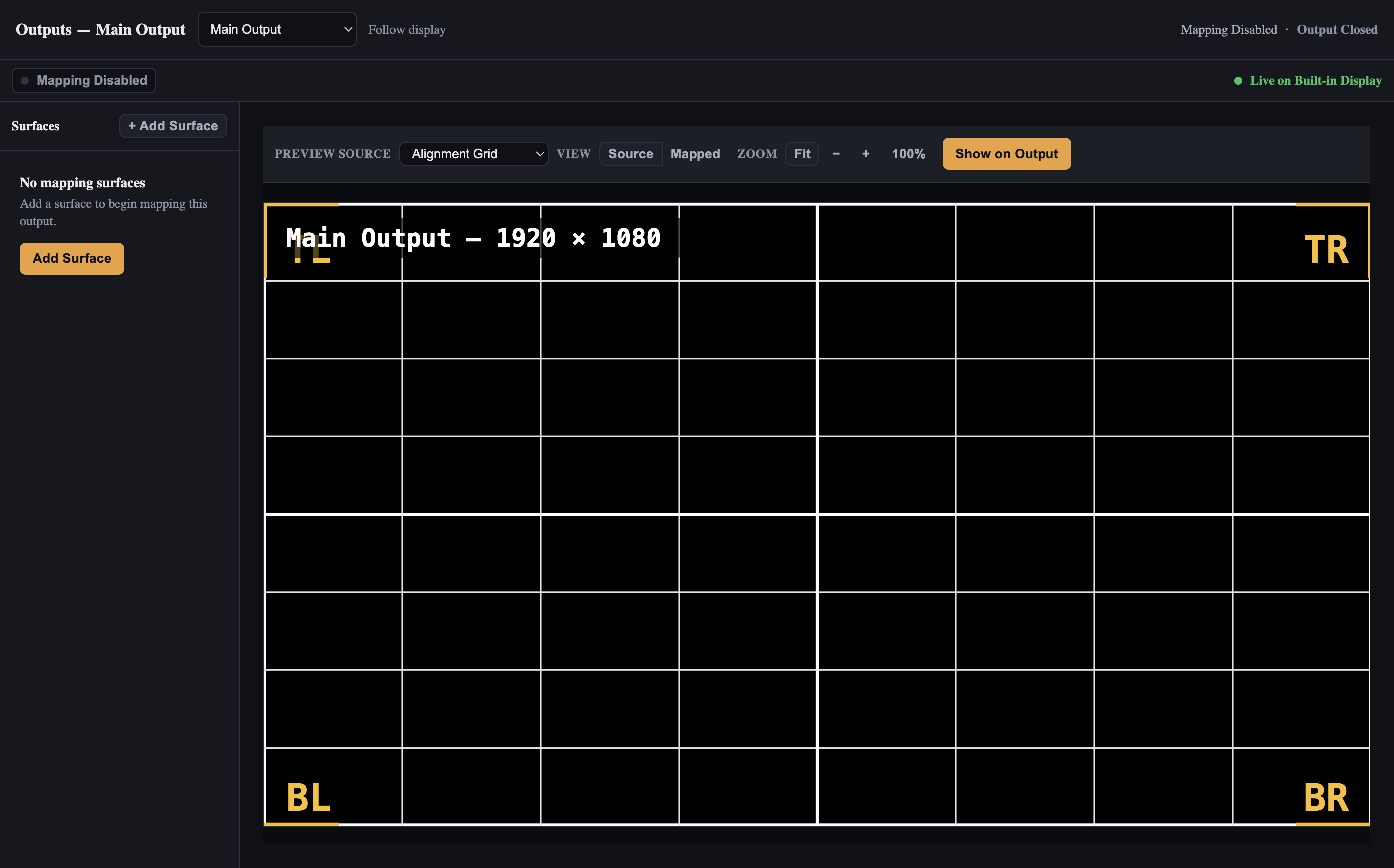
Window → Outputs opens “CueForge — Outputs” in a separate window: the projection-mapping editor for one selected logical output. A selector at the top picks the logical output, and the status line shows Mapping Enabled or Mapping Disabled alongside the output’s open/closed state.
The window contains:
- Mapping surfaces list — the surfaces warping the output’s canvas, with + Add Surface to create one.
- Preview canvas — the composed canvas and its mapped result. Preview Source chooses what the preview shows: the live Program composition or a generated commissioning pattern such as Alignment Grid. View: Source / Mapped switches between the unmapped canvas and the warped result, and zoom controls refine the view.
- Show on Output — push the selected preview source to the physical output to check it on the real surface (while a pattern is showing, the button becomes Return to Program).
The Outputs tool window: logical output selector, mapping surfaces list, and the mapping editor canvas with the alignment grid preview.
The embedded Outputs workspace
The tabbed Overview / Mapping / Commissioning surface lives in the embedded Outputs workspace — the optional Show Mode Outputs & Mapping panel. Its Overview tab shows status cards and quick actions for each logical output, Mapping hosts the same mapping editor as the tool window, and Commissioning generates the alignment patterns and controls test patterns and blackout.
Display bindings
Binding a logical output to a physical display is machine configuration: it lives in Settings → Outputs & Displays, which shows a summary of every logical output, its bound display, and its state.
Missing displays and single-display safety
When a bound display is not available, the binding is marked Missing — and that is all that happens. Content is never silently moved to another display. A Missing binding is reported in Preflight and in Settings → Outputs & Displays so you can fix it before the audience sees a blank wall.
On a single-display machine there is nowhere for CueForge to fall back to. Verify every bound display in preflight before doors, and treat a Missing binding as a blocker even if CueForge does not.
Display hot-plugging (connecting or disconnecting a screen while CueForge runs) is handled by the implementation, but live hot-plug validation is still in progress. Reconnect screens before the show, not during it.
Commissioning patterns
The Preview Source picker in the mapping editor and the Commissioning surface of the embedded Outputs workspace generate alignment patterns to help you fit and focus a display:
- Alignment Grid
- Keystone / Corners
- Geometry / Circles
- Overscan / Borders
- Centre / Crosshair
- Checkerboard
- Focus
- Grayscale
- Colour Grid
- Gradient
- Moving Sweep
Note: Commissioning patterns are generated test images. They are not cues, they do not appear in the cue list, and they do not affect the running show. Use them during setup; clear them before performance.
The Output menu
The application menu Output offers quick control of the default output:
- Open Main Output / Close Main Output
- Return to Program — leave a test pattern or commissioning view and restore show content.
- Blackout — clear visual output immediately (shortcut
Bin Show Mode).
Show Mode panels
Two optional Show Mode panels relate to outputs:
- Outputs & Mapping — the embedded Outputs workspace: blackout and test pattern controls, plus output status.
- Program Preview — a preview of what the audience sees, with Program and Mapped views.
Check the audio device binding first
Before audition or GO, verify that Master (or the cue’s chosen bus) has a resolved local device binding and the intended physical channels. Built-in speakers normally use channels 1–2. Check cue volume, bus volume and mute as separate controls. A missing required binding blocks playback; selecting a global default output alone does not resolve it.
Bindings are stored on this workstation per project path. A copied or renamed project can need its own binding. Recheck the binding after moving the show, changing computers or replacing an interface. Preview currently aliases Master and is not an isolated headphone output.
Audio routing
The audio side of outputs works differently from video:
- Audio buses are volume/mute groups assignable per audio cue.
- Each audio cue has an Audio output route: Master, Preview, or None.
The Preview route currently plays through the Master output. A dedicated preview output is not yet available; if a cue is routed to Preview, preflight warns that preview output is not yet available. Route None silences the cue, and preflight warns that it has no audible output.
Multichannel routing opens the multichannel editor: an explicit source-to-destination channel map with Reset to identity, no silent downmix — if a mapping does not cover every channel, that surfaces in validation rather than quietly folding channels together.
Audio device routing and bindings are implemented with automated validation, but physical validation on multichannel hardware is still in progress. Verify your audio interface’s routing in rehearsal, not on opening night.