Projects, Saving and Recovery
CueForge project files, the dirty state indicator, autosave and recovery, missing-media relinking, and quitting safely.
Everything about keeping your show safe on disk: what a project file is, how CueForge tracks unsaved changes, how autosave recovery works, what to do when media goes missing, and how to collect diagnostics for support.
Project files
A CueForge show is a single project file with the extension .cueforge. Media files are not embedded — they are referenced by path. Files that live inside the project folder are stored as relative paths, so the project and its media can be moved or archived together. Keep your media close to the project file.
File menu project commands
| Command | Shortcut | What it does |
|---|---|---|
| File → New Project… | Cmd+N | Creates a new empty project. Blocked under Show Lock. |
| File → Open Project | Cmd+O | Opens the file dialog, filtered to CueForge Project (.cueforge) files. Blocked under Show Lock. |
| File → Save Project | Cmd+S | Writes the project to disk. Always available, even under Show Lock. |
| File → Save Project As… | Cmd+Shift+S | Saves a copy under a new name or location and continues working on the copy. |
| File → Start Workspace | Cmd+Shift+N | Returns to the in-window launcher. |
If the current project has unsaved changes, New and Open first present the unsaved-changes guard (below) so nothing is lost by switching projects.
The dirty state
CueForge tracks unsaved changes against the last saved state of the document. When the project has changed since the last save, a dirty indicator shows in the window. The indicator clears the moment a save completes successfully.
Tip: Make a habit of pressing
Cmd+Sat every natural break — after building a scene, after assigning media, before running preflight. The dirty indicator should be off when you leave the desk.
Autosave and recovery
While a project has unsaved changes, CueForge writes an autosave every 30 seconds. This is a safety net, not a substitute for saving: always save explicitly before quitting or walking away.
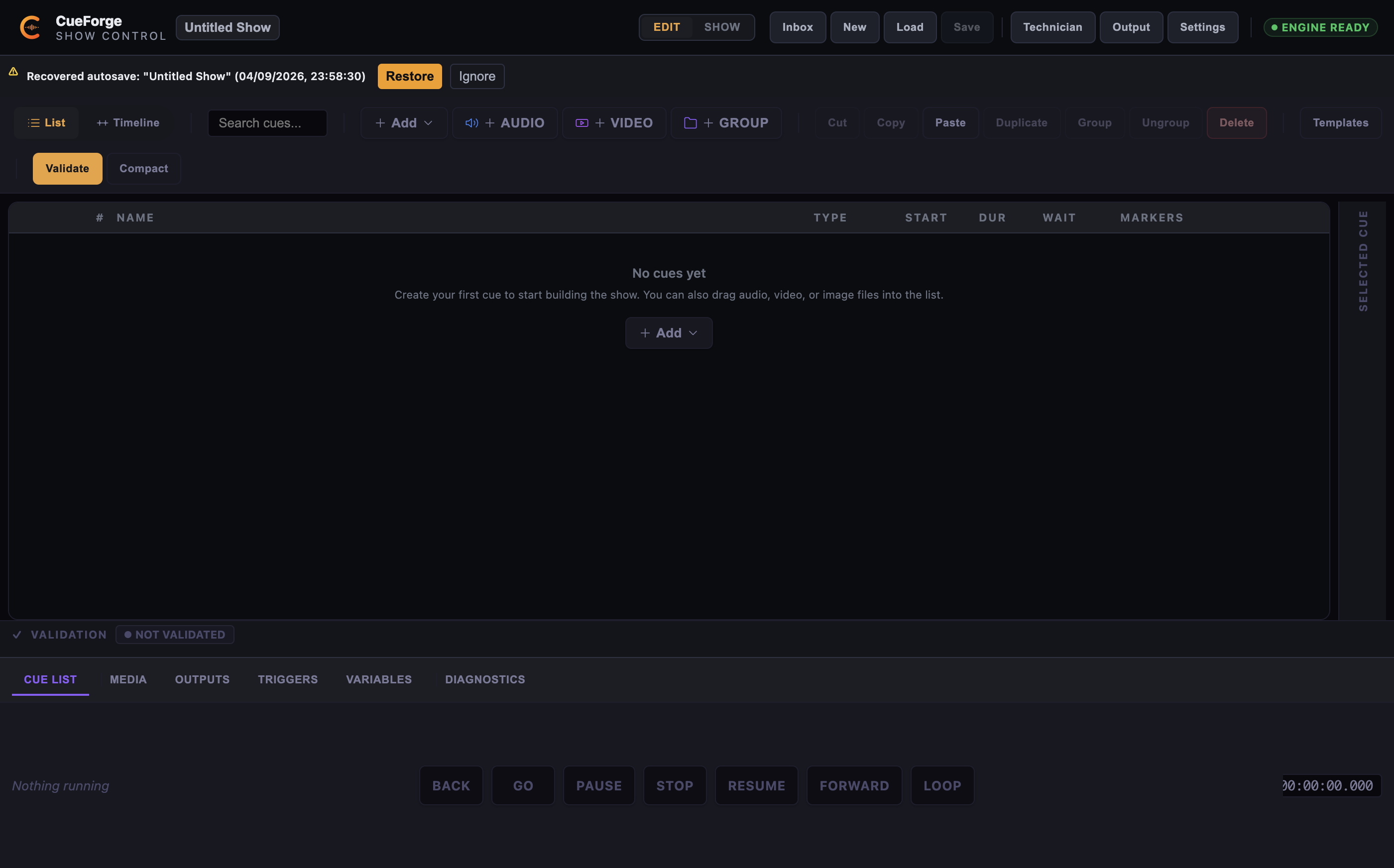
If CueForge was not closed cleanly — a crash, a power loss, a forced quit — the next launch shows a recovery banner instead of the Start Workspace:
Recovered autosave: <project name> — <timestamp>
- Restore — loads the recovered autosave so you can save it as a real project file.
- Ignore — discards the recovered autosave and continues to the Start Workspace.
The recovered-autosave banner on relaunch after an unclean shutdown, offering Restore and Ignore.
Warning: Ignoring a recovered autosave permanently discards it. If you are unsure, restore first and save under a new name; you can always delete the extra file later.
Missing media and the Relink Missing Media dialog
Because media is referenced by path, files can go missing when a drive is unplugged, a folder is renamed, or a project is moved without its media. CueForge surfaces this early:
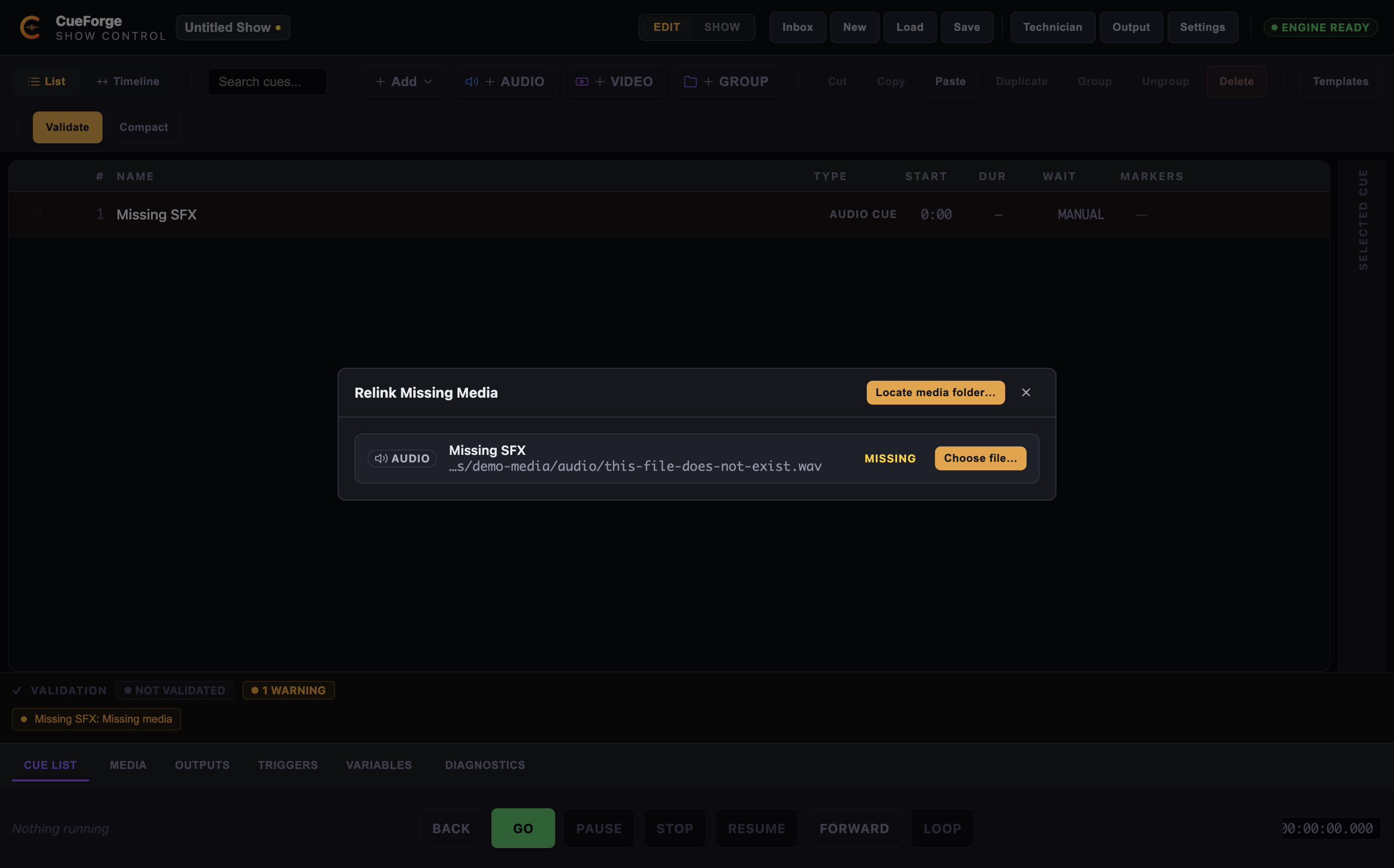
- A Missing badge appears on affected cues, and a banner offers the Relink Missing Media dialog.
- Preflight blocks Show Mode until missing media is resolved (or the cue is fixed).
The dialog offers two recovery actions:
- Locate media folder… — point CueForge at the folder the files now live in. A folder scan repairs multiple references at once, which is the fastest way to recover a moved media library.
- Choose file… — repair a single item by picking its file directly. Items are marked Missing (never found) or Failed (found but unreadable).
Both actions perform a relink: the same asset, found at its new location. Use this when you moved or renamed the file — relinking preserves the cue’s markers, phrases, and settings.
To use a different asset — the original is gone and a substitute must stand in — open the cue editor and use the Media Source group’s “Replace Audio File…” / “Replace Video File…” / “Replace Image File…” button. Replace is cue-specific by default: it changes the asset for that cue, not for every cue that referenced the old file.
The Relink Missing Media dialog with Locate media folder…, a MISSING badge, and per-file Choose file….
Note: Relinking is disabled under Show Lock and in Show Mode. Resolve missing media in Edit Mode before the show.
Quitting safely
CueForge never lets you lose work silently. Quitting with Cmd+Q (or Quit CueForge) while the project has unsaved changes shows a guard dialog — “Quit CueForge?” — with three options:
- Save and Quit — saves the project, then quits. If the save itself fails, an error is shown and the quit is aborted cleanly, with your changes still in the window.
- Discard Changes — quits without saving. This discards everything since the last save.
- Cancel — returns to the project unchanged. Nothing is saved and nothing is closed; the dialog simply goes away.
Note: The physical
Cmd+Qshortcut is undergoing final acceptance testing in Edit Mode. It is confirmed working in Show Mode; if quit does not respond while you are in Edit Mode, use CueForge → Quit CueForge from the application menu. The quit guard dialog itself is fully functional either way.
Exporting diagnostics for support
If something behaves unexpectedly, the Help menu provides two direct ways to give the support team what they need:
- Help → Export Diagnostics… — opens a native save dialog (default location:
~/Documents/CueForge-Diagnostics) that produces a bundle containing environment information, logs, and a manifest. - Help → Open Logs Folder — opens the folder where CueForge writes its log files.
Note: CueForge does not upload diagnostics automatically. The bundle is written to your machine; you decide whether and how to share it with support.